
Linking devices
To use a device with Macrame the server and remote device should be linked. If a device is not linked panels can not be viewed or used.
Open the devices page on the server.
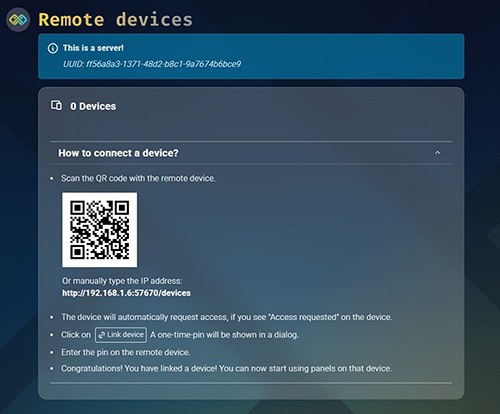
Scan the QR code or navigate, in a browser of your choosing, to the listed network address.
Example address: http://192.168.1.1:54321/devices
INFO
Your device will probably warn you because of the unsecured connection. If you want to keep using the application you should continue to the unsecured webpage.
If you don't I don't blame you. It's an application in development, and you're just being safe.
The connection might be secured in the future or a dedicated app will be build
The device will automatically start an access request.
If there are no devices linked the server will update once it has received the first access request.
If there are already devices shown, you should press the reload button once access has been requested.
Server Remote 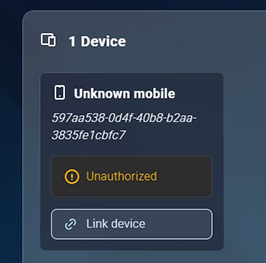
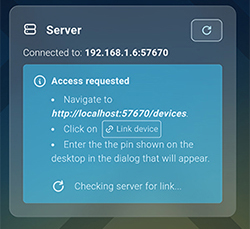
Press Link device. It will show you a one-time-pin in a dialog. Enter the pin on the remote device in the dialog that popped up.
Server Remote 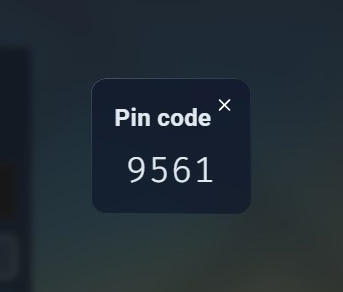
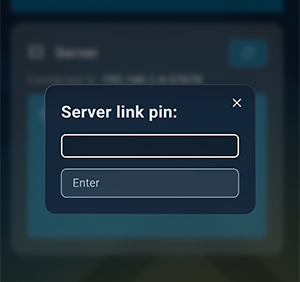
If the pin is entered correctly the device will be authorized and linking will be succesfull!
Server Remote 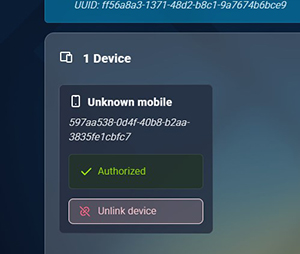
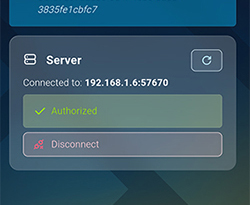
Restarting the linking process
If something went wrong in the standard linking process you can restart the process with the next steps
Press the reload button on the device.
A new access request will be started.
Press the reload button on the server.
The device should show up and you can continue step 4 of the linking process.
Removing devices manually
Go to the directory Macrame is saved in. Open the devices folder. Remove the files that are inside this folder.
Restart Macrame.
Reload the Macrame webpage on your LAN device.
INFO
If the above mentioned steps didn't work something else might be broken.
Please report the bug. It's much appreciated.